🚀 Primeiros Passos
This step-by-step tutorial will guide you through installing and configuring your Meshtastic device, from the start to joining the Portuguese community.
📸 Tip: You can click the images in each step to view them full-size. Great for seeing screen details more clearly!
Warning - risk of equipment damage
Never power the radio without the antenna properly connected. Operating without an antenna can cause permanent damage to the RF stage and void the warranty. Always confirm the antenna is firmly attached before powering the device.
Still choosing a device?
ESP32 and nRF52840 prioritize battery life, Wi-Fi, and NodeDB capacity differently. Choosing the right platform before buying can avoid unnecessary expense. Compare ESP32 and nRF52840
Basic requirements
Before you begin, make sure you have the following items:
- ✅ A compatible Meshtastic device
- 💻 A computer (Windows, macOS or Linux)
- 🔌 USB cable
- 🌐 Google Chrome installed
In Portugal and most of Europe, Meshtastic networks use the 868 MHz band. Using this frequency ensures compatibility and better integration with the local community.
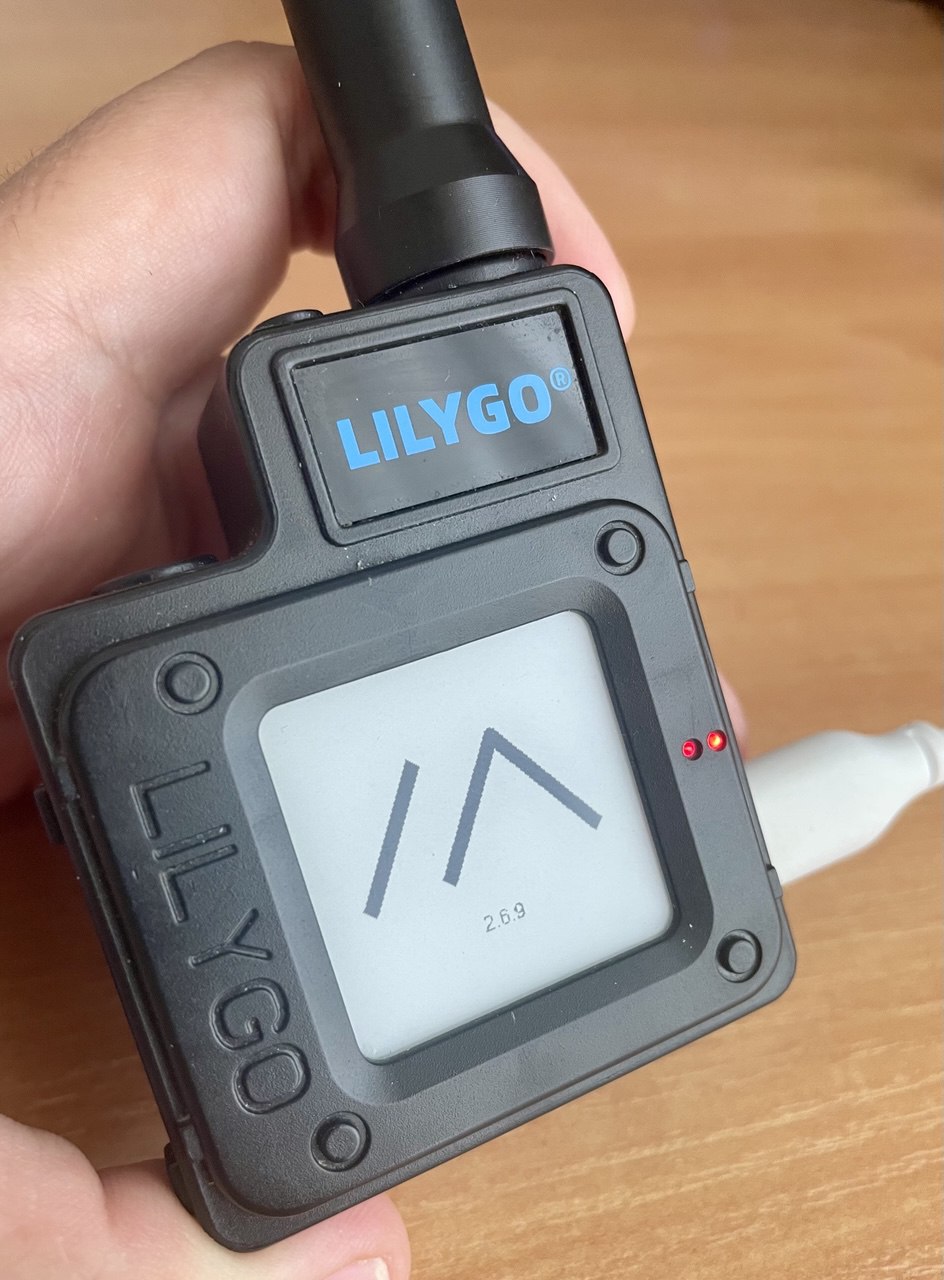
Firmware flashing
1. Connect the device to your PC via USB.
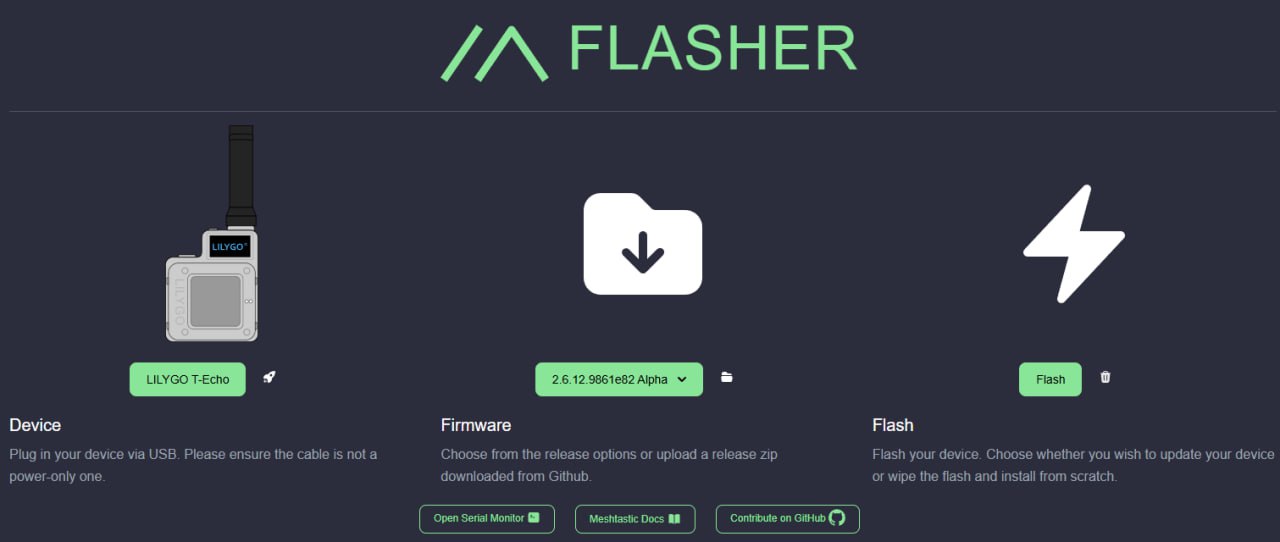
2. Open Google Chrome and visit: flasher.meshtastic.org
3. Click "Connect", select the device and choose the latest beta version.
On the first flash, we recommend selecting Full Erase. After that initial process, you can use normal flash updates.
4. Follow all steps shown on the flashing website until completion.
⚠️ Do not disconnect the device until the process is fully complete - it may reboot automatically.
Install the mobile app
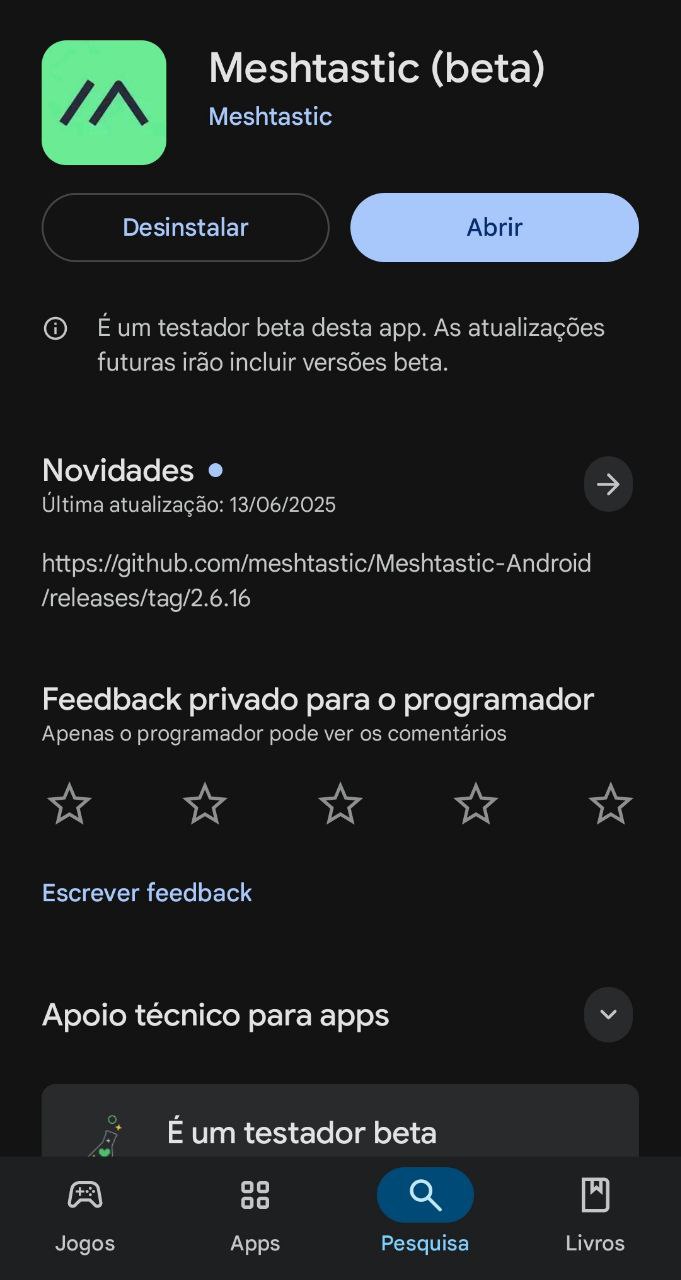
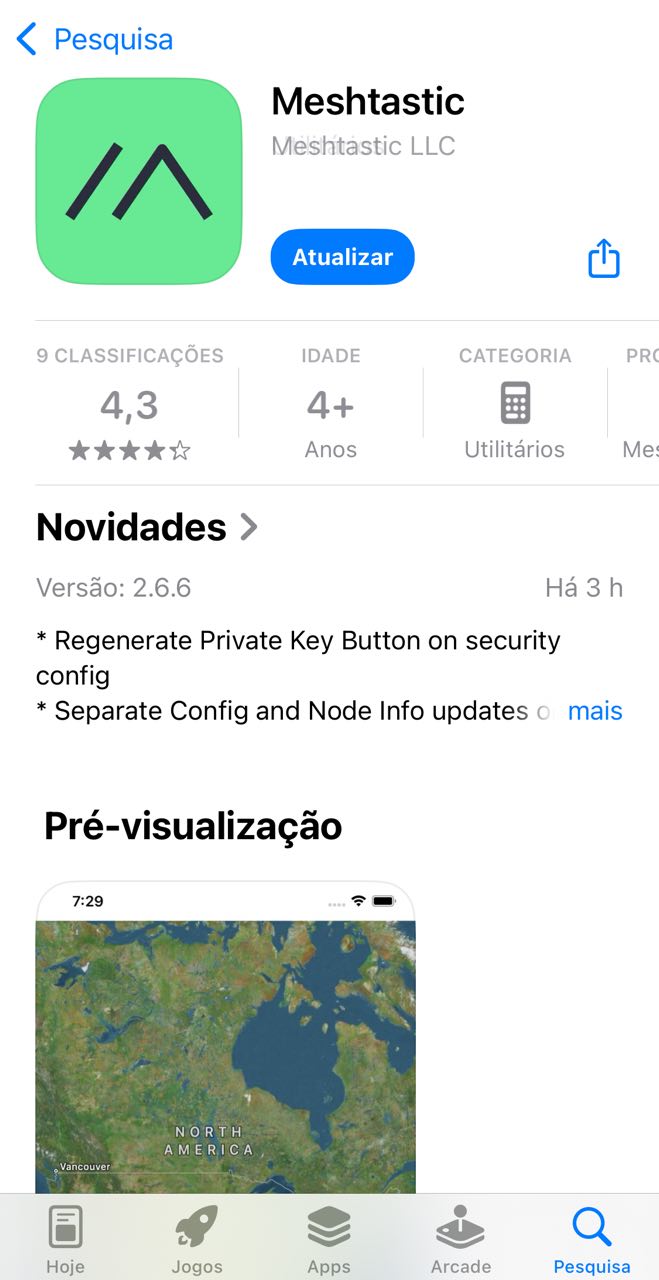
Install the official Meshtastic app:
After installation, scan the QR Code that matches your radio frequency (EU868 or EU433).
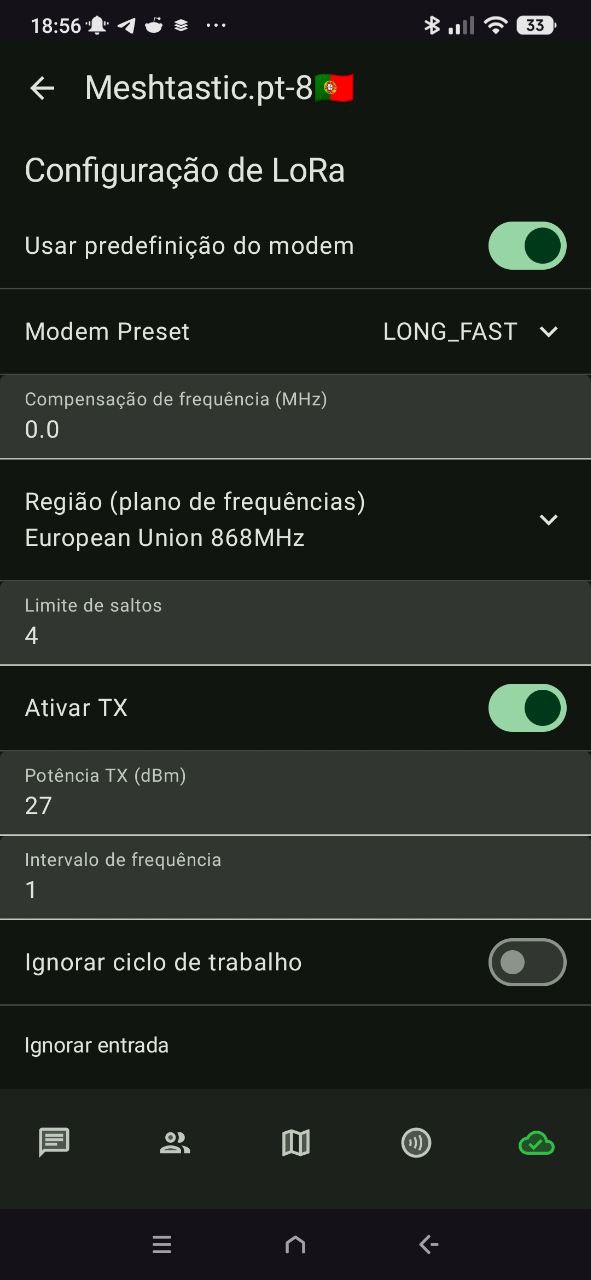
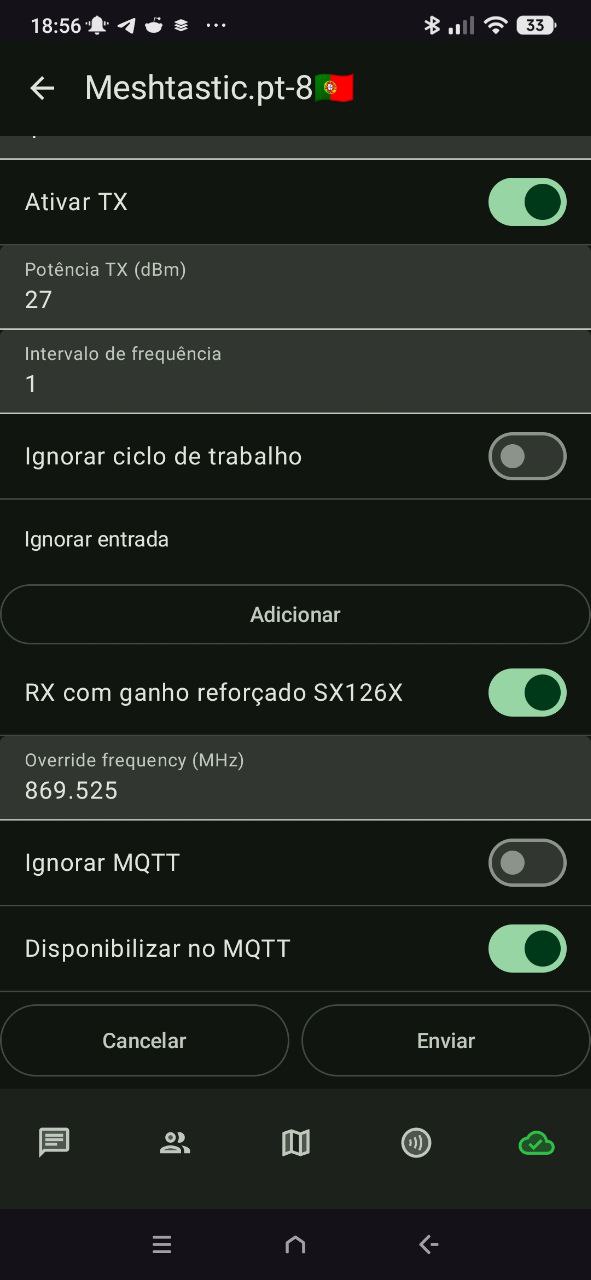
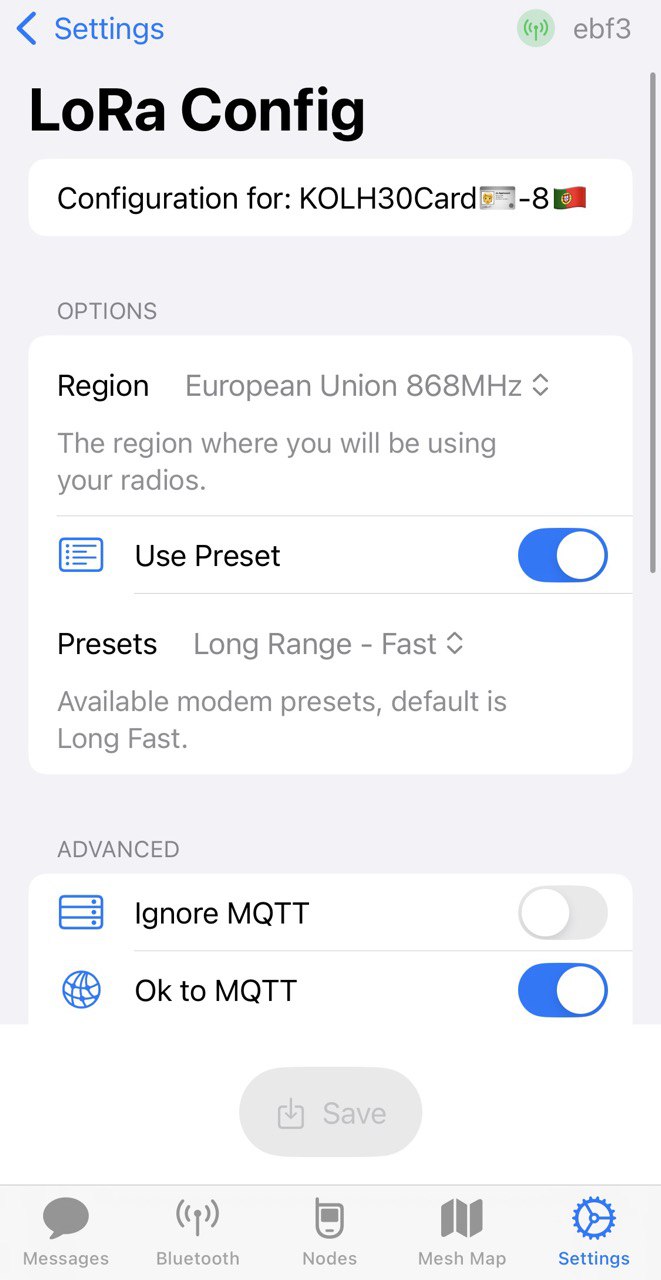
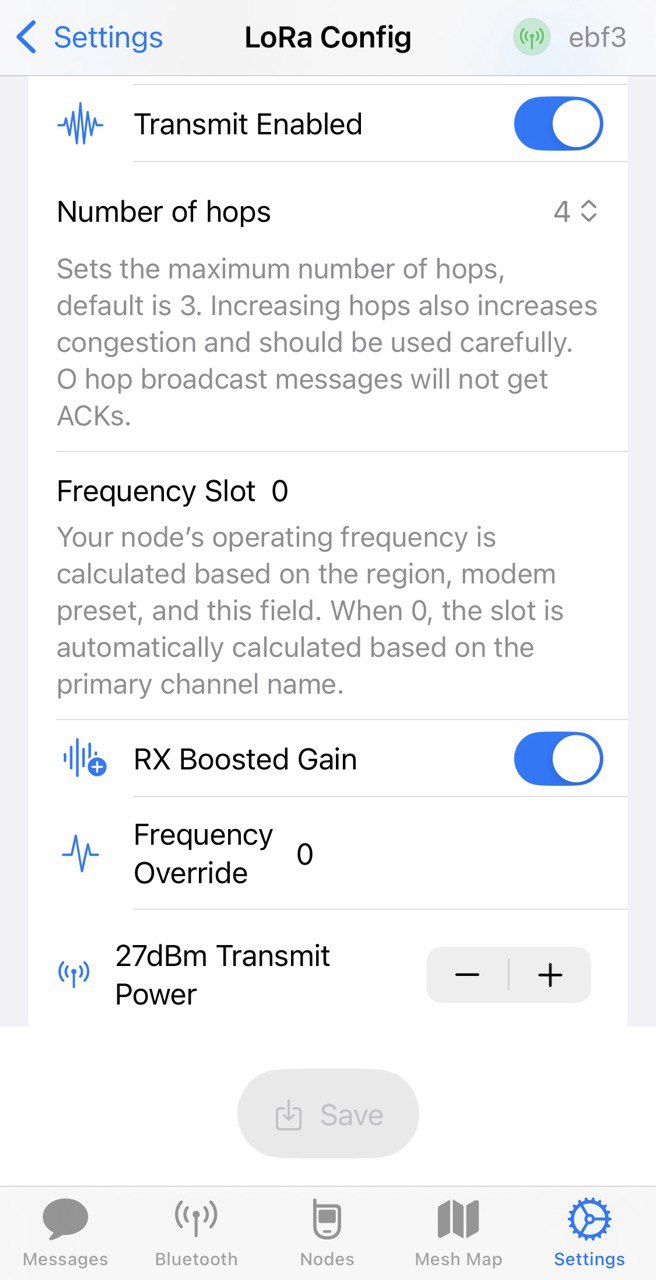
Initial settings
From the app:
- 🌍 Region: Europe 868 or Europe 433 depending on the radio
- 📶 Mode: Client, Client Mute, Gateway, etc.
- 🔧 Hops: max 4 in Client mode
- 📡 MQTT: Enable "OK to MQTT" and disable "Ignore MQTT"
- 🛰️ Frequency Slot: 1 for 868 MHz, 4 for 433 MHz
Name and identification
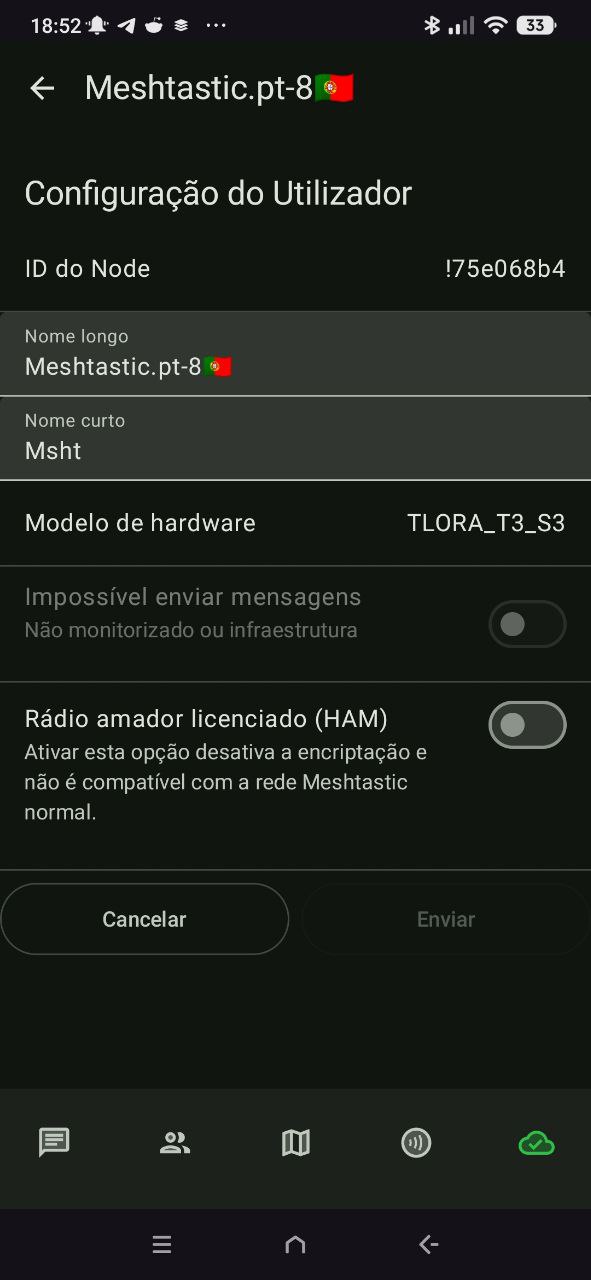
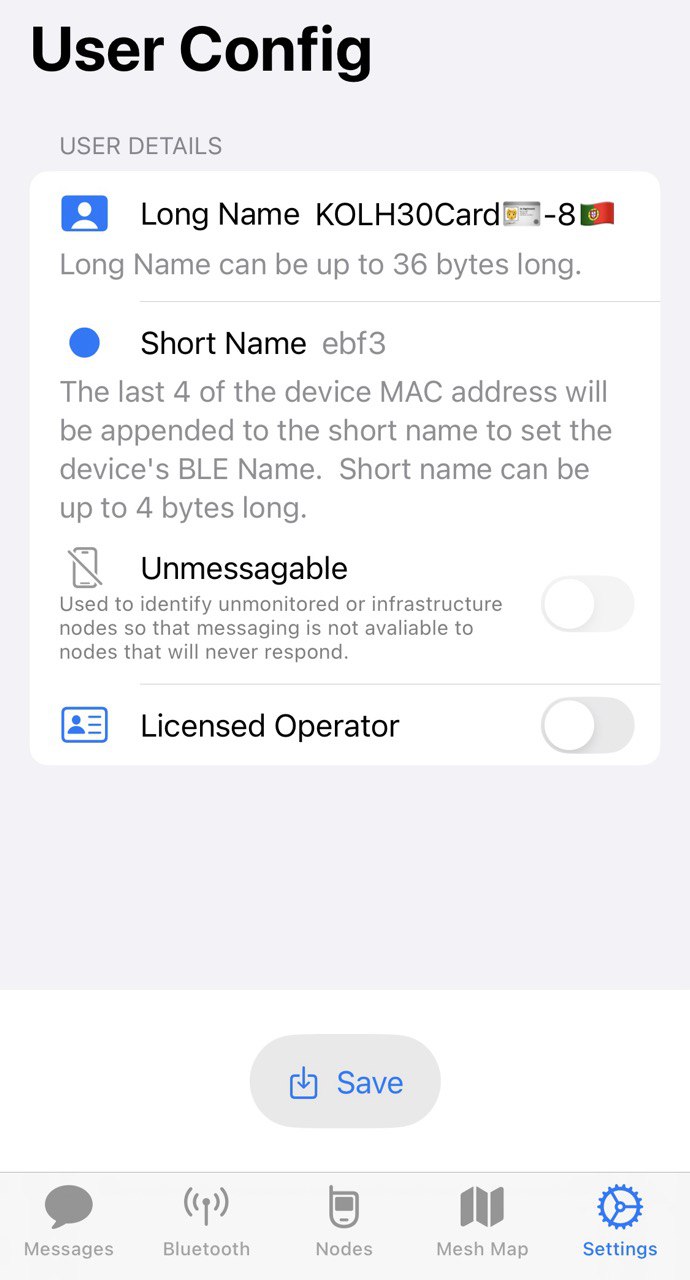
In the User Config menu:
- Name: e.g. OnomeQueQuero-8
- Short name: e.g. NQQ8
- ✨ The frequency is used as a suffix: -8 (868), -4 (433), -24 (2.4 GHz)
MQTT settings
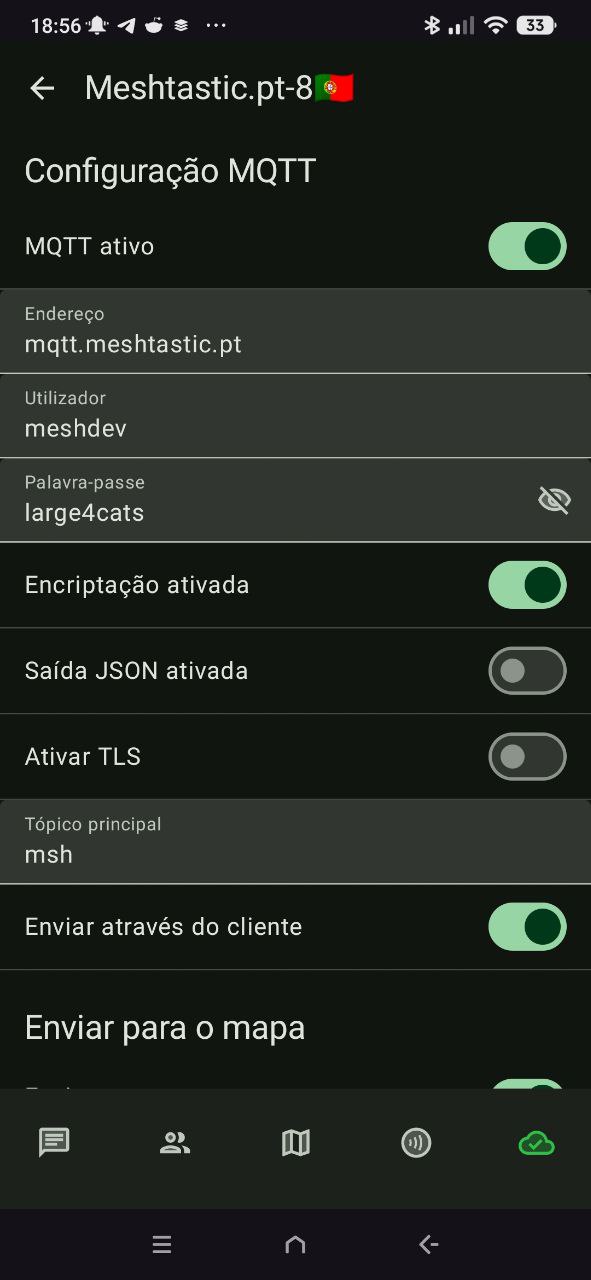
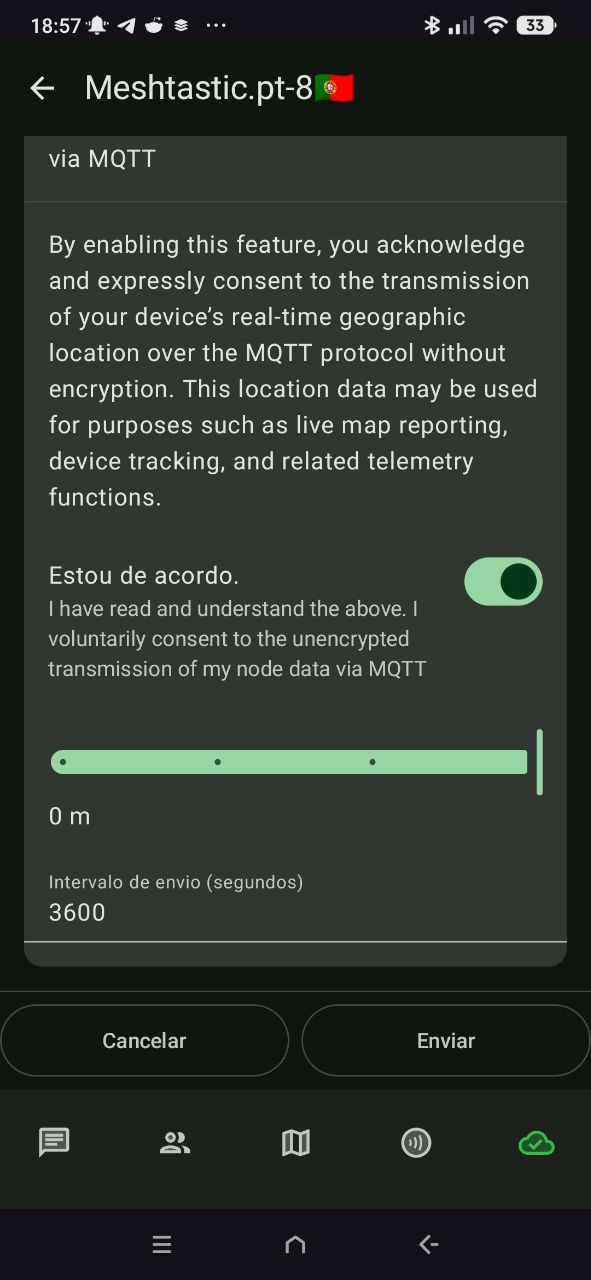
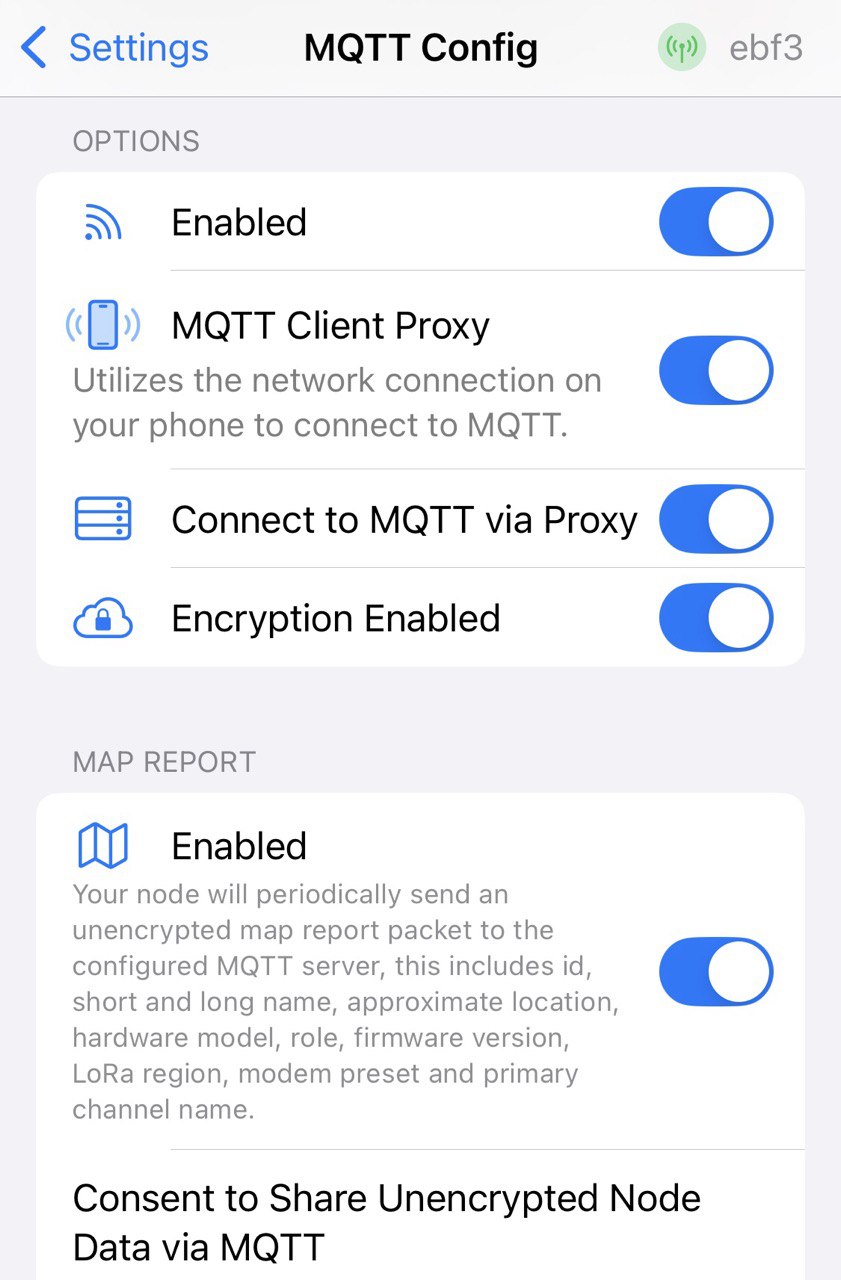
Go to Device Settings → MQTT:
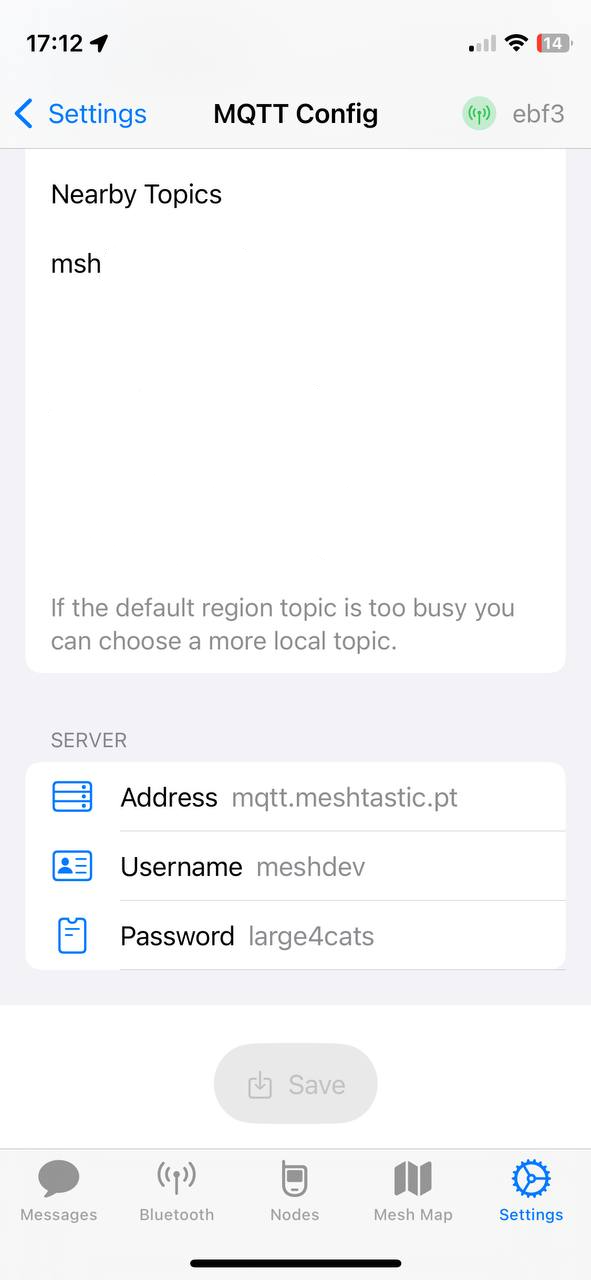
- Address: mqtt.meshtastic.pt
- Username: meshdev
- Password: large4cats
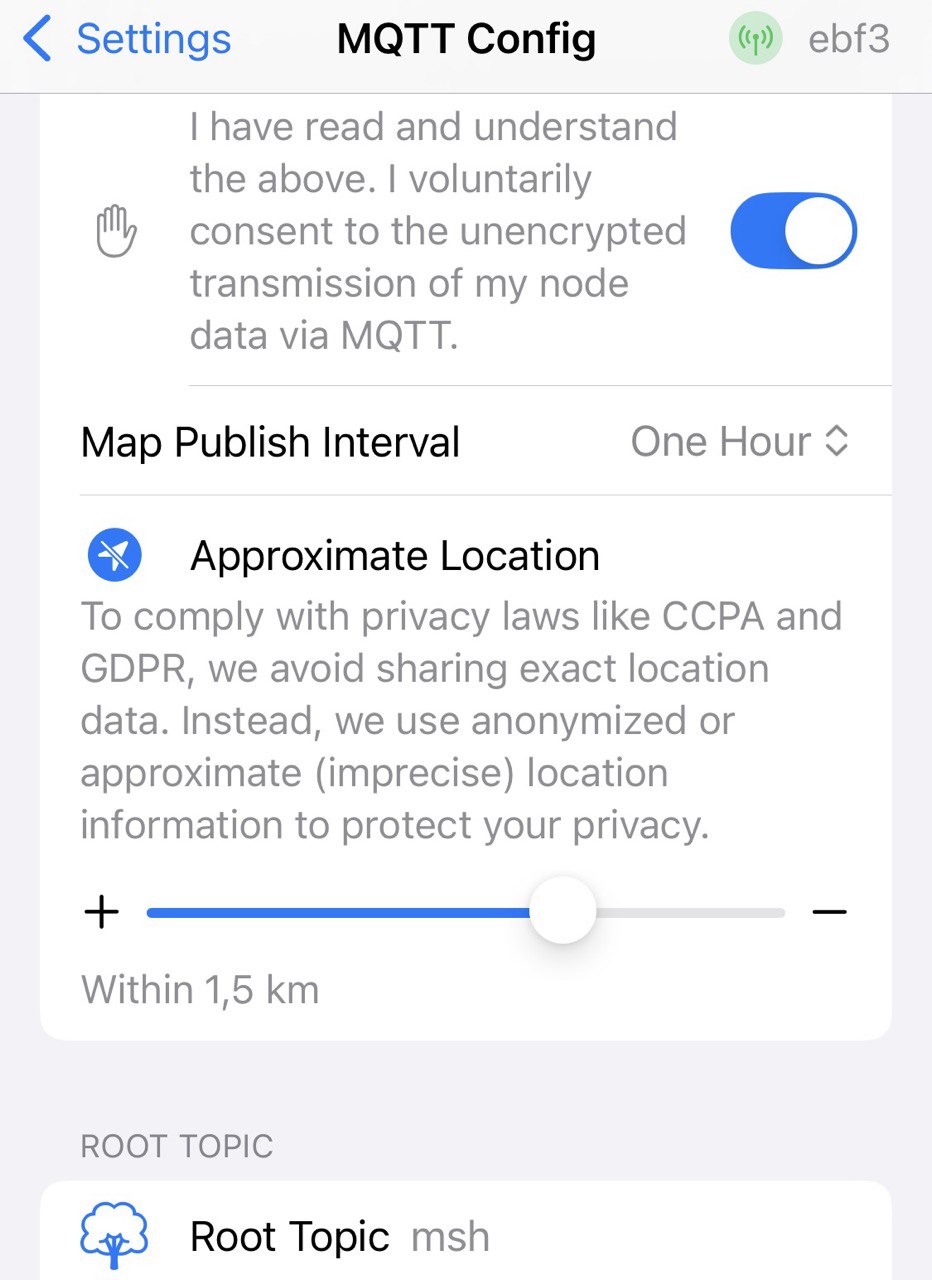
- Root Topic: msh
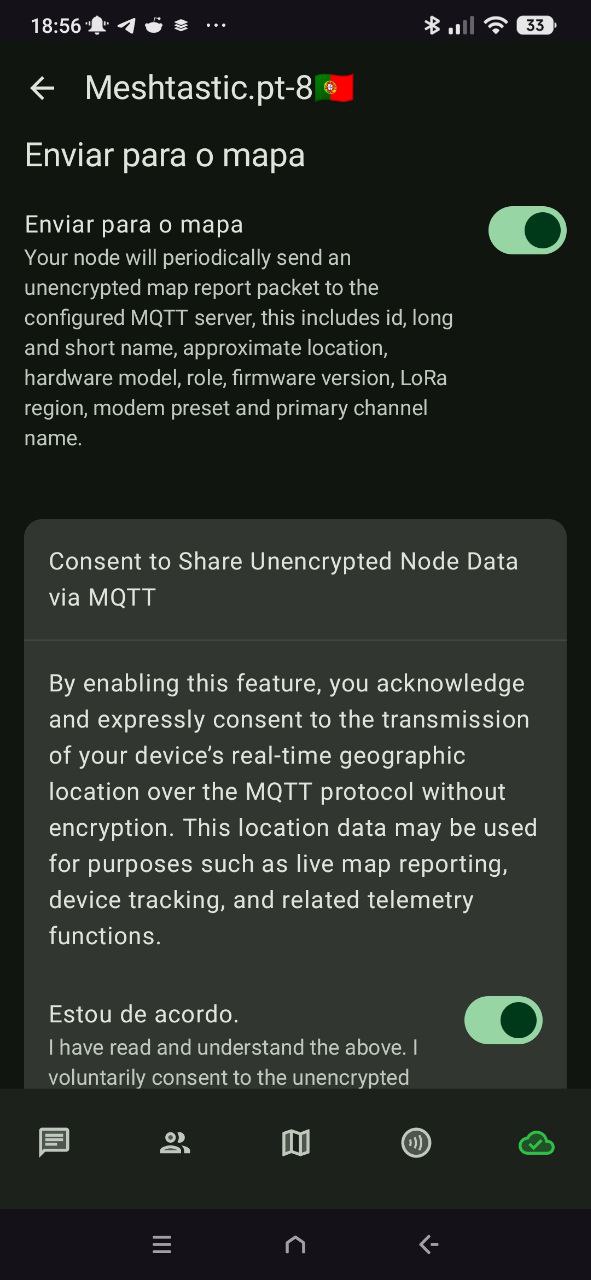
- Map Reporting: Enabled with interval 7200 (client) or 14400 (gateway)
- Proxy to Client: Enable if you keep Bluetooth always on
- Encryption: ON | TLS: OFF
⚠️ WiFi and Bluetooth do not work simultaneously - enabling one disables the other automatically.
Primary channel
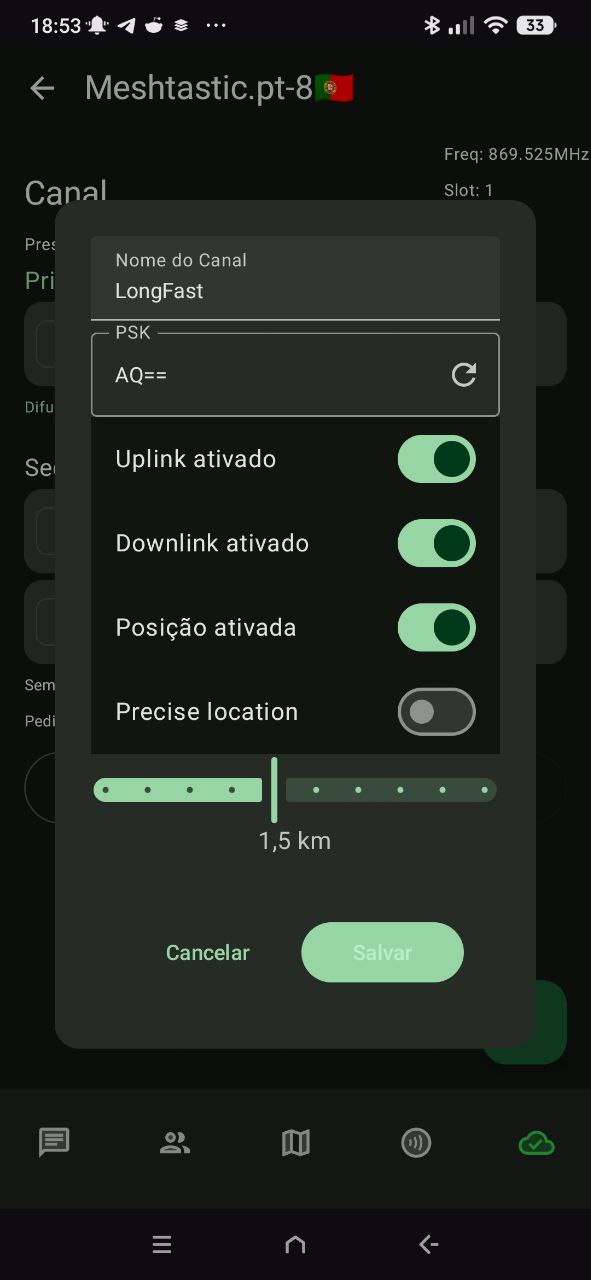
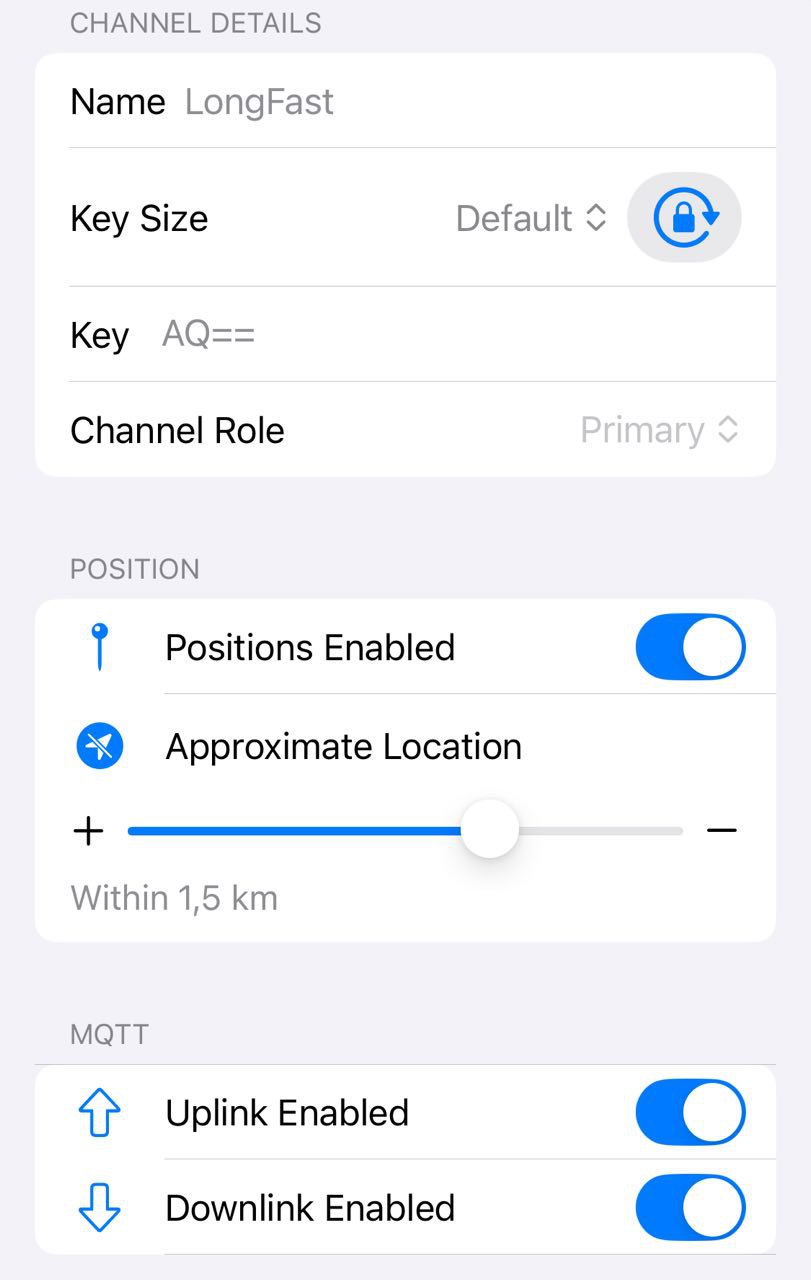
Confirm that the channel name is LongFast.
- 🔁 Enable Uplink and Downlink
- 🕵️♂️ For privacy, set location precision or disable it
🎉 All set!
If you followed all steps carefully, your Meshtastic device is now properly installed and configured. You are ready to explore the network, communicate with other users and get the most out of this mesh‑tastic technology!
⚡ Welcome to the Meshtastic PT community - together, more connected, even without network!